If you have a dispute over a role assignment or would like to appeal a denied request, please . Include details about the event, section, or video in question, the role you're requesting, and any relevant information that supports your request.
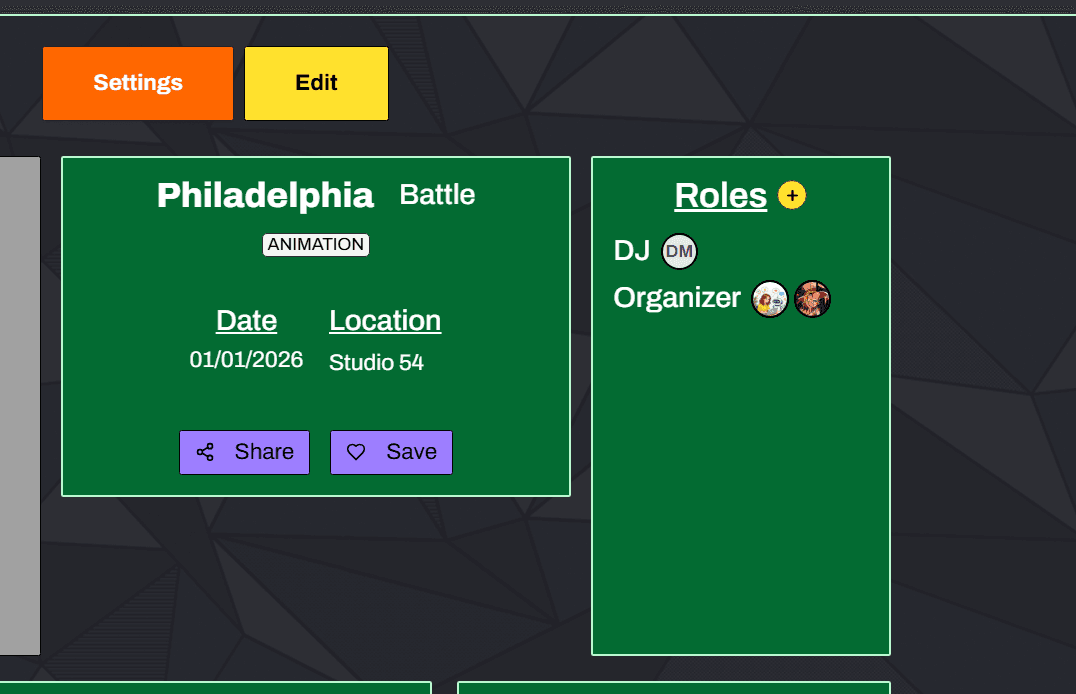
On Dance Chives, you can tag yourself with different roles at three levels: event, section, and video. Each level has different available roles and serves different purposes.
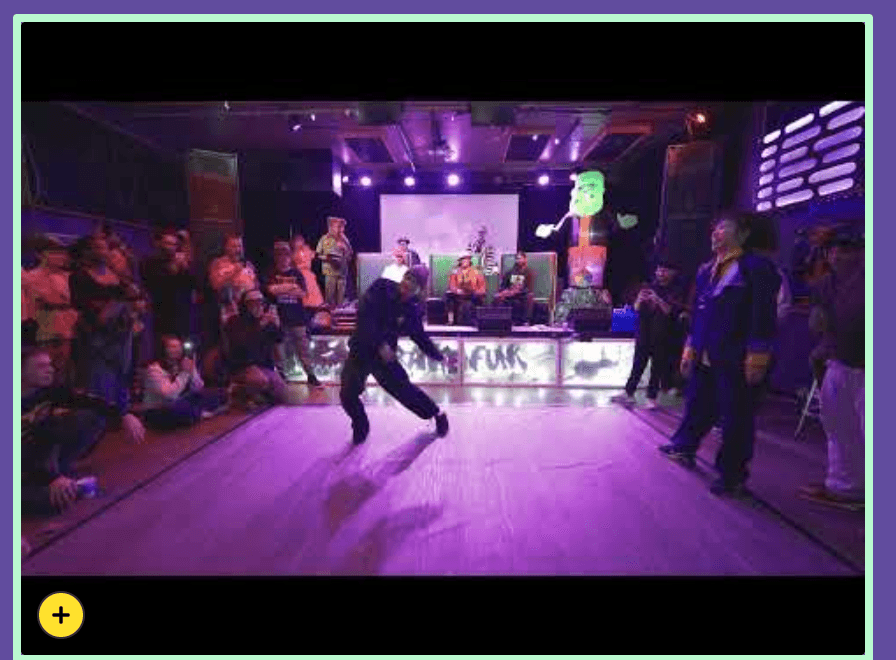
Look for the yellow circular button with a plus iconon event, section, or video pages. This button allows you to request a role at that specific level. The button will appear wherever you can tag yourself with a role.


If you own the event or are a team member, you have additional options for role assignment:
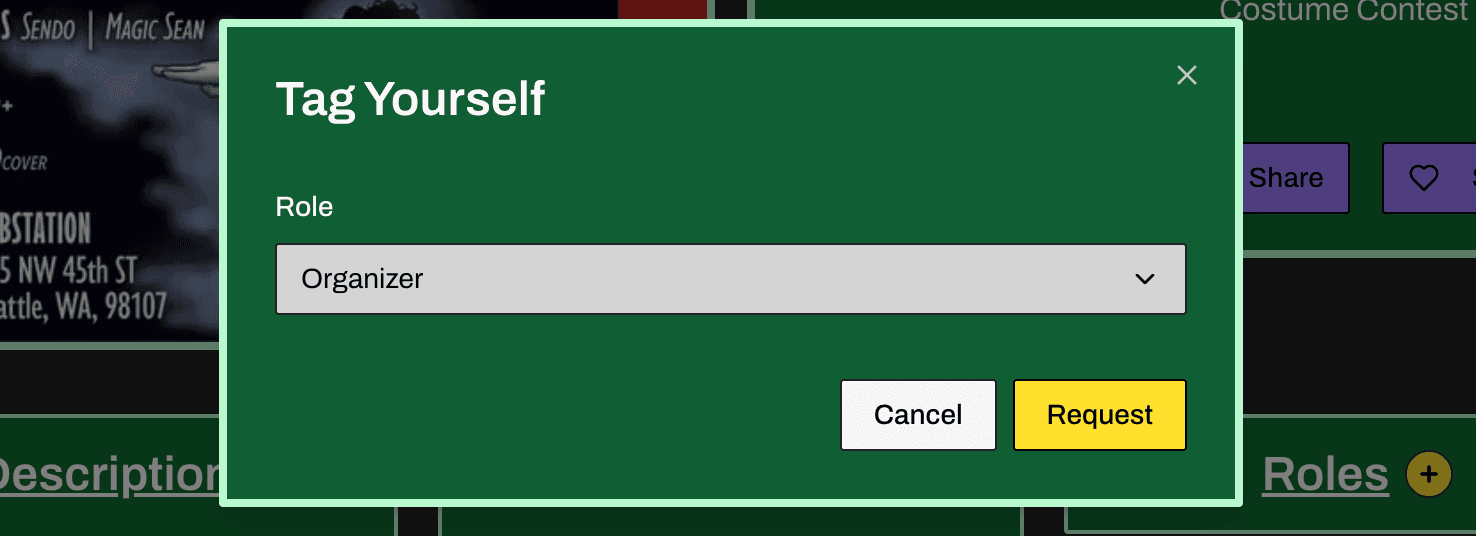
If you don't own the event or aren't a team member, you'll need to request the role:
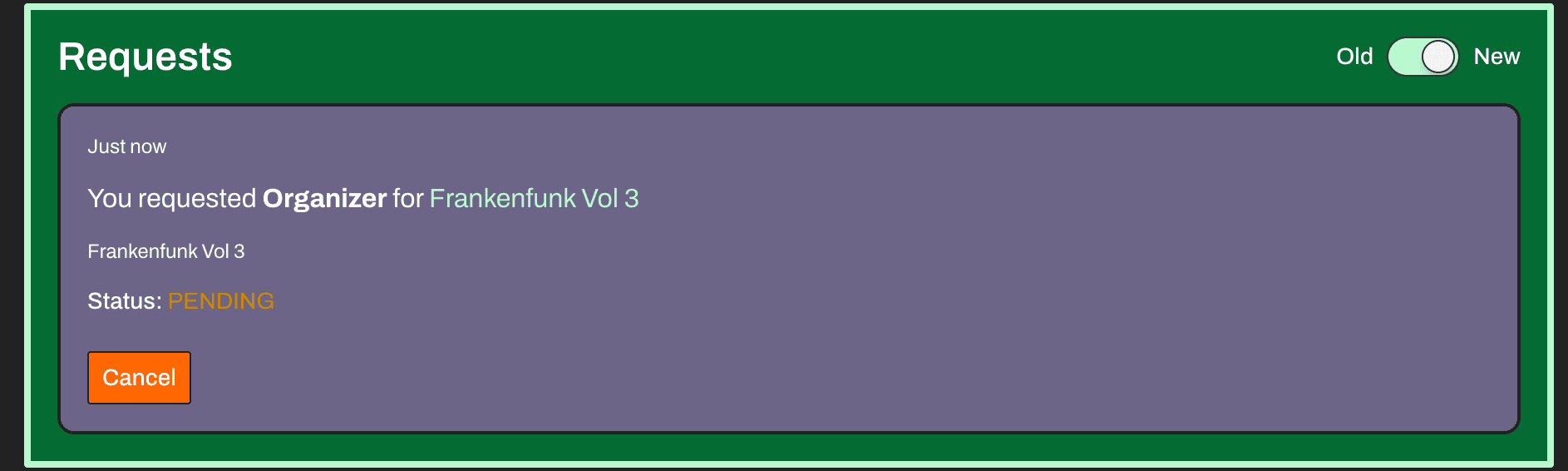
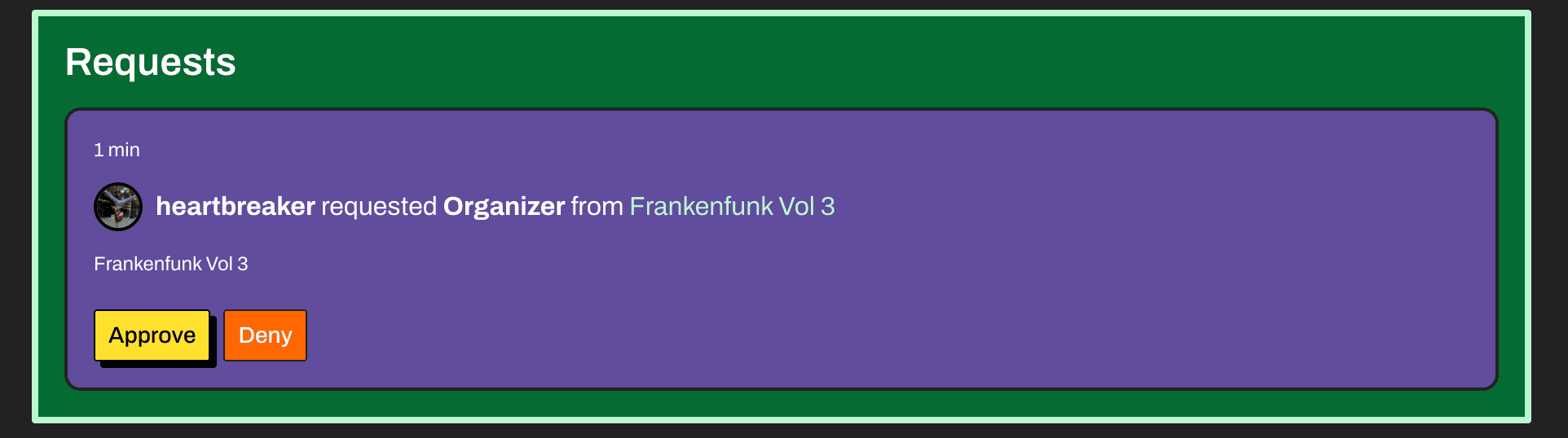
Who Can Approve Your Request?
Tagging requests can be approved by:
It is also possible to tag events and assign roles to unregistered Instagram accounts. This is useful when you know the Instagram handle of the person you want to tag but they are not on Dance Chives yet.
To tag an event and assign a role to an unregistered Instagram account, you will need to provide the Instagram handle of the account you are tagging and the user's name.
Here is an example of how to look up an Instagram account and add it to an event:
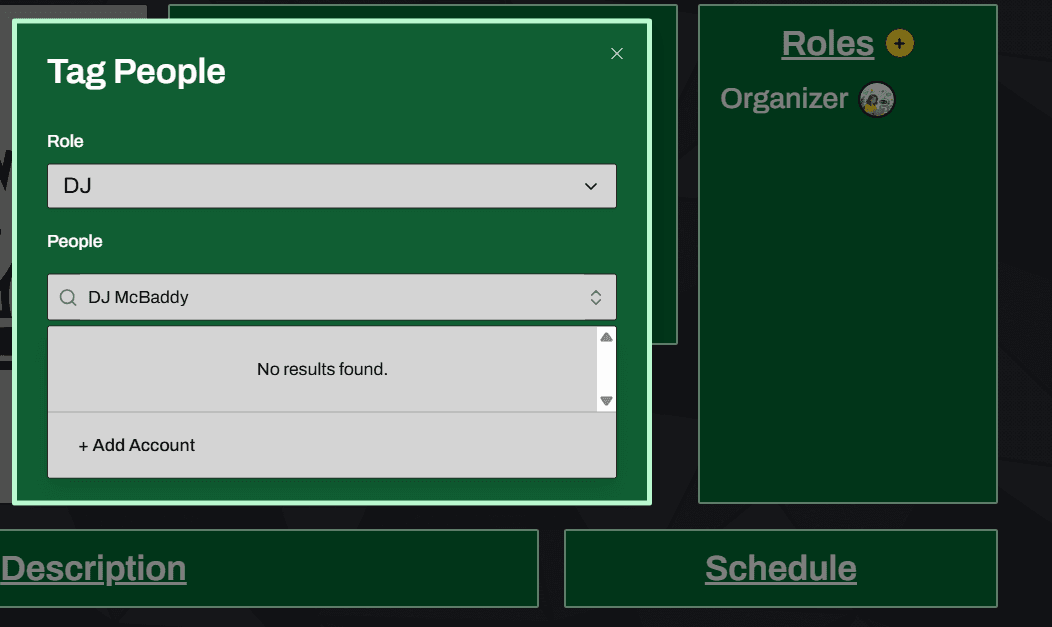
Select a role and click "Add Account". Then add the Instagram handle of the account you are tagging and the user's name:
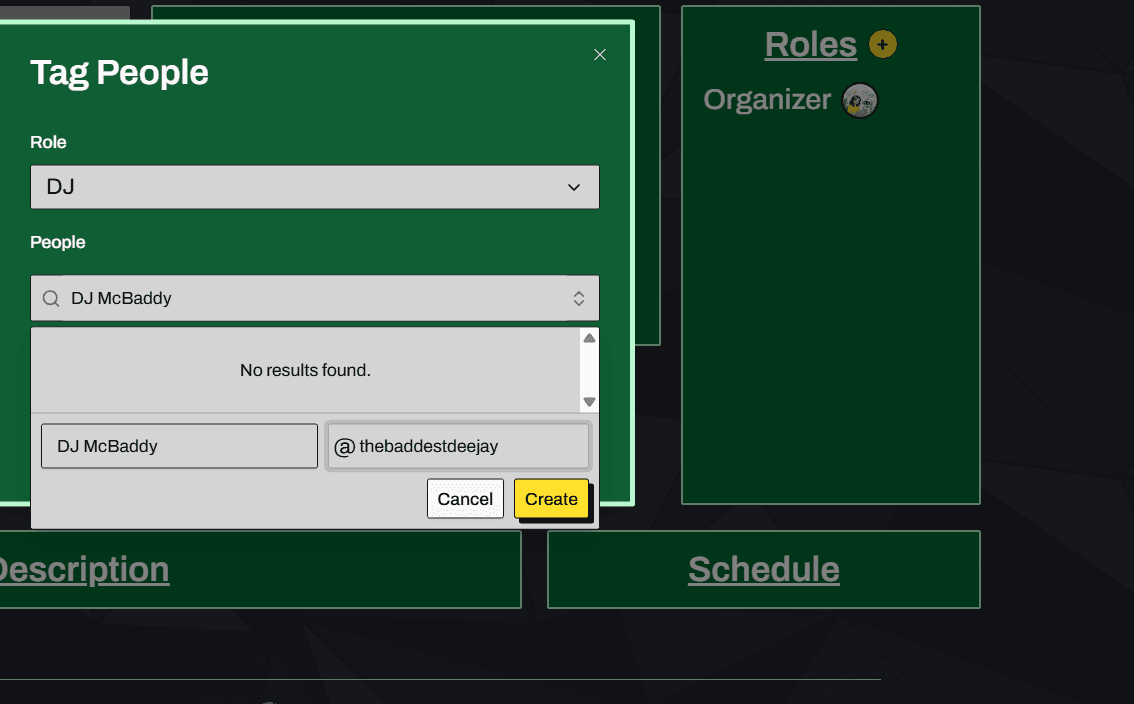
Once you have added the account, you will need to confirm the identity of the account.
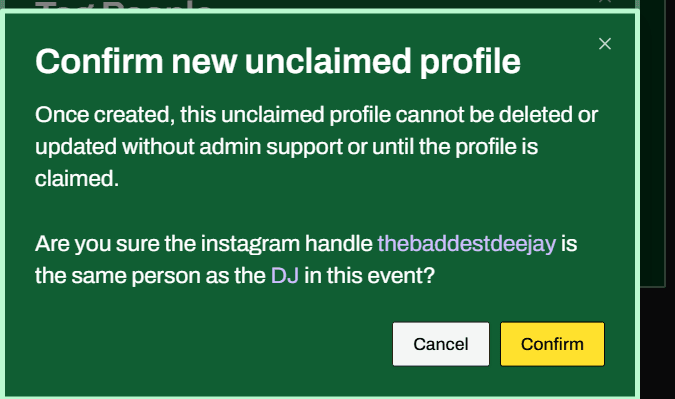
Once you've confirmed the identity of the account, you can tag the user with a role for the event.